Setup guide
Connect your Instagram in three steps
Instagram doesn't send a notification for any of this, so we email you when it's your turn. Your part takes about five minutes.
We send your invitation
While the Analyzer is in private beta, Instagram only lets an account connect after it accepts an invitation from our app. We add your account by hand. Instagram won't tell you when it arrives, so we will. Watch for this email:
GGraniteAI Social
Your Instagram invitation is ready
Accept it in Instagram, then press Connect. About two minutes.
Accept it in Instagram
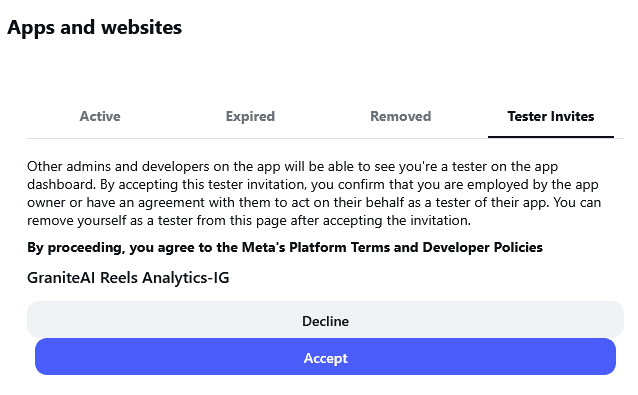
Signed in to the account you want connected, open instagram.com/accounts/manage_access. Open the Tester Invites tab and press Accept next to GraniteAI Reels Analytics-IG.
In the Instagram app
- Profile
- Menu
- Settings and privacy
- Website permissions
- Apps and websites
- Tester Invites
Instagram asks you to confirm you are testing the app with its owner. That is expected: during the beta you are trying the Analyzer on your own account, and you can remove yourself on the same page at any time.
Connect, then ask your AI
On your install page, press Connect Instagram, sign in to the same account, and press Allow. Then add the Analyzer to Claude or ChatGPT with the address below. Your account starts syncing within the hour.
Connect InstagramSign inAllowConnector address
https://social.graniteai.co/mcpIn Claude
- Customize
- Connectors
- Add custom connector
Ready for step 3? Open your install page.
If something does not line up
- The Tester Invites tab is empty. If our "invitation is ready" email hasn't arrived yet, it isn't there yet. If it has, you are probably signed in to a different Instagram account than the handle you gave us, or the account isn't a Business or Creator account yet. Switch accounts, or reply to our email with the handle you want connected and we will send the invitation there.
- Instagram shows Insufficient Developer Role when you press Connect. The invitation hasn't been accepted on that account yet. Go back to step 2.
- You want to stop. Press Disconnect at social.graniteai.co/manage. Collection stops with the next hourly run, and you can remove yourself from the app on the same Instagram page you accepted on.